Saturday, December 12, 2009

Special ALT Charactors! ! ! !


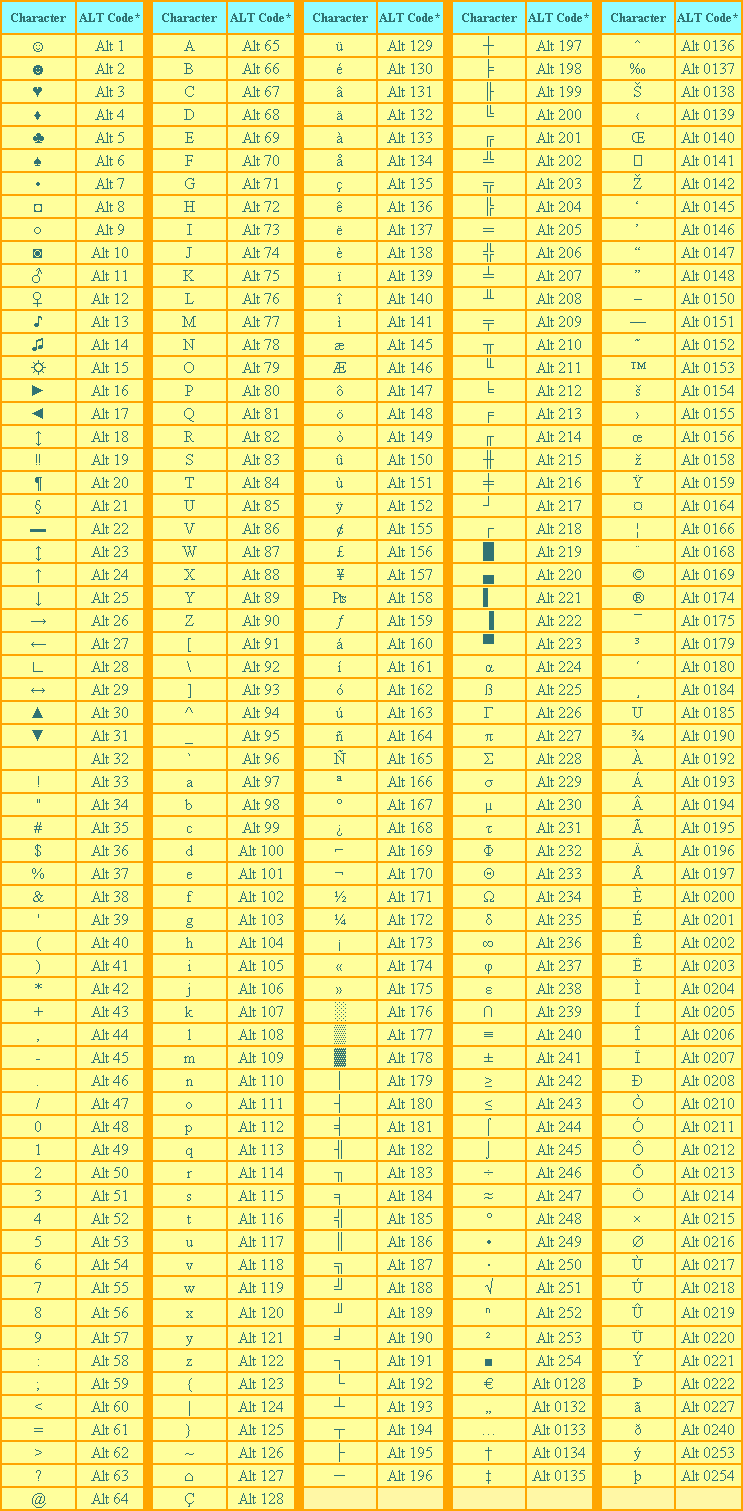
§To obtain an ALT Character:

  1. Make certain that the Num Lock key has been pressed to activate the numeric key section of the keyboard.
  2. Depress the Alt key.
  3. While the Alt key is depressed, type the proper sequence of numbers (on the numeric keypad) of the ALT code from the table above.
  4. Release the Alt key, and the character will appear.

Some browsers do not recognize all of the ALT Characters. Since each of the characters in the table above is virtually unique, seeing multiple cells of the same character most likely indicates that your browser does not recognize the codes of some of the characters. Therefore, it does not know what those characters should look like, and it inserts its own character each time. If this is the case for you, then view a graphic image of how the table should look.

*There are some gaps in the numerical sequence of ALT Character codes because either those items do not exist, or else they are duplicates of characters listed elsewhere. Many Special ALT Characters, Special HTML Characters, and Special Characters are the same.

Some word processing programs and browsers will not recognize all Alt characters.


174 Run Commands For Windows XP

Program Run Command
Accessibility Controls access.cpl
Accessibility Wizard accwiz
Add Hardware Wizard hdwwiz.cpl
Add/Remove Programs appwiz.cpl
Administrative Tools control admintools
Adobe Acrobat ( if installed ) acrobat
Adobe Distiller ( if installed ) acrodist
Adobe ImageReady ( if installed ) imageready
Adobe Photoshop ( if installed ) photoshop
Automatic Updates wuaucpl.cpl

Basic Media Player mplay32
Bluetooth Transfer Wizard fsquirt

Calculator calc
Ccleaner ( if installed ) ccleaner
C: Drive c:
Certificate Manager cdrtmgr.msc
Character Map charmap
Check Disk Utility chkdsk
Clipboard Viewer clipbrd
Command Prompt cmd
Command Prompt command
Component Services dcomcnfg
Computer Management compmgmt.msc
Compare Files comp
Control Panel control
Create a shared folder Wizard shrpubw

Date and Time Properties timedate.cpl
DDE Shares ddeshare
Device Manager devmgmt.msc
Direct X Control Panel ( if installed ) directx.cpl
Direct X Troubleshooter dxdiag
Disk Cleanup Utility cleanmgr
Disk Defragment dfrg.msc
Disk Partition Manager diskmgmt.msc
Display Properties control desktop
Display Properties desk.cpl
Display Properties (w/Appearance Tab Preselected ) control color
Dr. Watson System Troubleshooting Utility drwtsn32
Driver Verifier Utility verifier

Ethereal ( if installed ) ethereal
Event Viewer eventvwr.msc

Files and Settings Transfer Tool migwiz
File Signature Verification Tool sigverif
Findfast findfast.cpl
Firefox firefox
Folders Properties control folders
Fonts fonts
Fonts Folder fonts
Free Cell Card Game freecell

Game Controllers joy.cpl
Group Policy Editor ( xp pro ) gpedit.msc

Hearts Card Game mshearts
Help and Support helpctr
Hyperterminal hypertrm
Hotline Client hotlineclient

Iexpress Wizard iexpress
Indexing Service ciadv.msc
Internet Connection Wizard icwonn1
Internet Properties inetcpl.cpl
Internet Setup Wizard inetwiz
IP Configuration (Display Connection Configuration) ipconfig /all
IP Configuration (Display DNS Cache Contents) ipconfig /displaydns
IP Configuration (Delete DNS Cache Contents) ipconfig /flushdns
IP Configuration (Release All Connections) ipconfig /release
IP Configuration (Renew All Connections) ipconfig /renew
IP Configuration (Refreshes DHCP & Re-Registers DNS) ipconfig /registerdns
IP Configuration (Display DHCP Class ID) ipconfig /showclassid
IP Configuration (Modifies DHCP Class ID) ipconfig /setclassid

Java Control Panel ( if installed ) jpicpl32.cpl
Java Control Panel ( if installed ) javaws

Keyboard Properties control keyboard

Local Security Settings secpol.msc
Local Users and Groups lusrmgr.msc
Logs You Out of Windows logoff

Malicious Software Removal Tool mrt
Microsoft Access ( if installed ) access.cpl
Microsoft Chat winchat
Microsoft Excel ( if installed ) excel
Microsoft Diskpart diskpart
Microsoft Frontpage ( if installed ) frontpg
Microsoft Movie Maker moviemk
Microsoft Management Console mmc
Microsoft Narrator narrator
Microsoft Paint mspaint
Microsoft Powerpoint powerpnt
Microsoft Word ( if installed ) winword
Microsoft Syncronization Tool mobsync
Minesweeper Game winmine
Mouse Properties control mouse
Mouse Properties main.cpl
MS-Dos Editor edit
MS-Dos FTP ftp

Nero ( if installed ) nero
Netmeeting conf
Network Connections control netconnections
Network Connections ncpa.cpl
Network Setup Wizard netsetup.cpl
Notepad notepad
Nview Desktop Manager ( if installed ) nvtuicpl.cpl

Object Packager packager
ODBC Data Source Administrator odbccp32
ODBC Data Source Administrator odbccp32.cpl
On Screen Keyboard osk
Opens AC3 Filter ( if installed ) ac3filter.cpl
Outlook Express msimn

Paint pbrush
Password Properties password.cpl
Performance Monitor perfmon.msc
Performance Monitor perfmon
Phone and Modem Options telephon.cpl
Phone Dialer dialer
Pinball Game pinball
Power Configuration powercfg.cpl
Printers and Faxes control printers
Printers Folder printers
Private Characters Editor eudcedit

Quicktime ( if installed ) quicktime.cpl
Quicktime Player ( if installed ) quicktimeplayer

Real Player ( if installed ) realplay
Regional Settings intl.cpl
Registry Editor regedit
Registry Editor regedit32
Remote Access Phonebook rasphone
Remote Desktop mstsc
Removable Storage ntmsmgr.msc
Removable Storage Operator Requests ntmsoprq.msc
Resultant Set of Policy ( xp pro ) rsop.msc

Scanners and Cameras sticpl.cpl
Scheduled Tasks control schedtasks
Security Center wscui.cpl
Services services.msc
Shared Folders fsmgmt.msc
Sharing Session rtcshare
Shuts Down Windows shutdown
Sounds Recorder sndrec32
Sounds and Audio mmsys.cpl
Spider Solitare Card Game spider
SQL Client Configuration clicongf
System Configuration Editor sysedit
System Configuration Utility msconfig
System File Checker Utility ( Scan Immediately ) sfc /scannow
System File Checker Utility ( Scan Once At Next Boot ) sfc /scanonce
System File Checker Utility ( Scan On Every Boot ) sfc /scanboot
System File Checker Utility ( Return to Default Settings) sfc /revert
System File Checker Utility ( Purge File Cache ) sfc /purgecache
System File Checker Utility ( Set Cache Size to Size x ) sfc /cachesize=x
System Information msinfo32
System Properties sysdm.cpl

Task Manager taskmgr
TCP Tester tcptest
Telnet Client telnet
Tweak UI ( if installed ) tweakui

User Account Management nusrmgr.cpl
Utility Manager utilman

Volume Serial Number for C: label
Volume Control sndvol32

Windows Address Book wab
Windows Address Book Import Utility wabmig
Windows Backup Utility ( if installed ) ntbackup
Windows Explorer explorer
Windows Firewall firewall.cpl
Windows Installer Details msiexec
Windows Magnifier magnify
Windows Management Infrastructure wmimgmt.msc
Windows Media Player wmplayer
Windows Messenger msnsgs
Windows Picture Import Wizard (Need camera connected) wiaacmgr
Windows System Security Tool syskey
Windows Script host settings wscript
Widnows Update Launches wupdmgr
Windows Version ( shows your windows version ) winver
Windows XP Tour Wizard tourstart
Wordpad write

Zoom Utility igfxzoom

Thursday, December 10, 2009

All About Phishing! & What is phishing

It is becoming increasingly common to tune in to the news or load your favorite news Web site and read about yet another Internet e-mail scam. An e-mail scam is a fraudulent e-mail that appears to be from a legitimate Internet address with a justifiable request — usually to verify your personal information or account details. One example would be if you received an e-mail that appears to be from your bank requesting you click a hyperlink in the e-mail and verify your online banking information. Usually there will be a repercussion stated in the e-mail for not following the link, such as "your account will be closed or suspended". The goal of the sender is for you to disclose personal and (or) account related information. This type of e-mail scam is also called phishing.


How to Spot A Phishing Scam
At first glance, it may not be obvious to the recipients that what is in their inbox is not a legitimate e-mail from a company with whom they do business. The "From" fi
eld of the e-mail may have the .com address of the company mentioned in the e-mail, and the clickable link may also appear to be taking you to the company's Web site, but will in fact take you to a spoof Web site. Looks can be deceiving, but with phishing scams the e-mail is never from who is appears to be!


1. The "From Field" appears to be from the legitimate company mentioned in the e-mail. It is important to note, however, that it is very simple to change the "from" information in any e-mail client. While we're not going to tell you how, rest assured it can be done in a matter of seconds!

2. The e-mail will usually contain logos or images that have been taken from the Web site of the company mentioned in the scam e-mail.

3. The e-mail will contain a clickable link with text suggesting you use the inserted link to validate your information. In the image you will see that once the hyperlink is highlighted, the bottom left of the screen shows the real Web site address to which you will go. Note that the hyperlink does NOT point to the legitimate Citibank Web site URL.

In this instance, the text you click is "here", However, this may also state something like "Log-in to Citibank" or "www.citibank.com/secure" to be even more misleading. This clickable area is only text and can be changed to anything the sender wants it to read.

Additionally, you may spot some of these elements that did not appear in this particular scam:

Logos that are not an exact match to the company's logo, spelling errors, percentage signs followed by numbers or @ signs within the hyperlink, random names or e-mail addresses in the body of the text, or even e-mail headers which have nothing to do with the company mentioned in the e-mail.

Who Is Behind the Phishes & Why
The people behind phishing e-mails are scam artists. They literally send out millions of these scam e-mails in the hopes that even a few recipients will act on them and provide their personal and financial information. Anyone with an e-mail address is at risk of being phished. Any e-mail address that has been made public on the Internet (posting in forums, newsgroups or on a Web site) is more susceptible to phishing as the e-mail address can be saved by spiders that search the Internet and grab as many e-mail addresses as they can. This is why phishing is profitable for scammers; they can cheaply and easily access millions of valid e-mail addresses to send these scams to.

Common (Phish) Sense
After reading this far, we hope that you will be able to spot a phishing e-mail without too much difficulty. The e-mail represented above is just a sample; phishing e-mails can appear to be from any bank, PayPal, eBay, credit card companies, an online retail store — basically from anywhere a person may have registered for an account, and usually would have supplied financial information when registering.

The golden rule to avoid being phished is to never ever click the links within the text of the e-mail. Always delete the e-mail immediately. Once you have deleted the e-mail then empty the trash box in your e-mail client as well. This will prevent "accidental" clicks from happening as well. If, for some really odd reason you have this nagging feeling that this could just possibly be a legitimate e-mail and nothing can convince you otherwise, you still need to adhere to the golden rule and not click the link in the message. For those truly worried that an account may be in jeopardy if you do not verify your information, you need to open your Web browser program of choice and type the URL to the Web site in the address field of your browser and log on to the Web site as you normally would (without going through the e-mail link as a quick route). This will provide you with accurate information about your account and allow you to completely avoid the possibility of landing on a spoof Web site and giving your information to someone you shouldn't.

Now that you know how to avoid being phished, there is still the question of what to do about phishing e-mails should you be a recipient of them. First of all, you can visit the Web site of the company from whom the e-mail appears to be from and take the time to notify them of the suspicious e-mail. Many companies do want to know if their company name is being used to try and scam people, and you'll find scam and spoof reporting links within some of these Web sites. Additionally, you can report phishing to the Federal Trade Commission (FTC), and depending on where you live, some local authorities may also accept Internet phishing scam reports. Lastly, you can also send details of a phishing scam to to the Anti-Phishing Working Group who is building a repository/database of common scams to help inform people of the risks.

The New Phish - Spear Phishing
As with all malicious code, once a small percentage of the population starts to catch on, the perpetrators find ways to make the attack a little different, and this case, make the phish harder to net. The newest type of phishing scam is one that focuses on a single user or a department within an organization. The Phish appears to be legitimately addressed from someone within that company, in a position of trust, and request information such as login IDs and passwords. Spear phishing scams will often appear to be from a company's own human resources or technical support divisions and may ask employees to update their username and passwords. Once hackers get this data they can gain entry into secured networks. Another type of spear phishing attack will ask users to click on a link, which deploys spyware that can steal data.


Tuesday, December 8, 2009

How to Hide and Lock Hard Disk Drives in "My Computer"

Did you know you can secure the data on the hard disk drives by hiding or locking them. In Windows, use the steps below to do just do it.

Click on the "Start" button. Go to "Run", type "gpedit.msc" and press ENTER.
Wait for the "Group Policy wizard" to appear. Click on the "+" button behind "Administrative Templates". Then click the "+" button behind "Windows Components" and then "Windows Explorer".
Search for "Hide these specified drives in My Computer" in the options that appear in the right column of the window. Double click it, enable it and choose the drive(s) you want to hide.
Now for LOCK
Search for "Prevent access to drives from My Computer". Double click it and repeat the previous step if you want to stop accessing any drive by "command" (e.g, by typing "C:" in the address bar or "Run").
Close the group policy window.
Restart your computer for changes to take effect.
Enjoy...!!!

Why can't we create folder named 'con' ?

all this indicates that explorer.exe might be using the keyword "con" and is not able 2 create it. on the other hand we donot have such a problem with cmd prompt and can thus create a folder named "con"

create a folder without any name!!!!!!!!!!

Do you know, how can create a folder without any name!?
When you create or rename a folder do following:
press "Alt" and type 255 and then press Enter.
be successful !
Related Posts Plugin for WordPress, Blogger...